

 About Us
What Is Findings Triage?
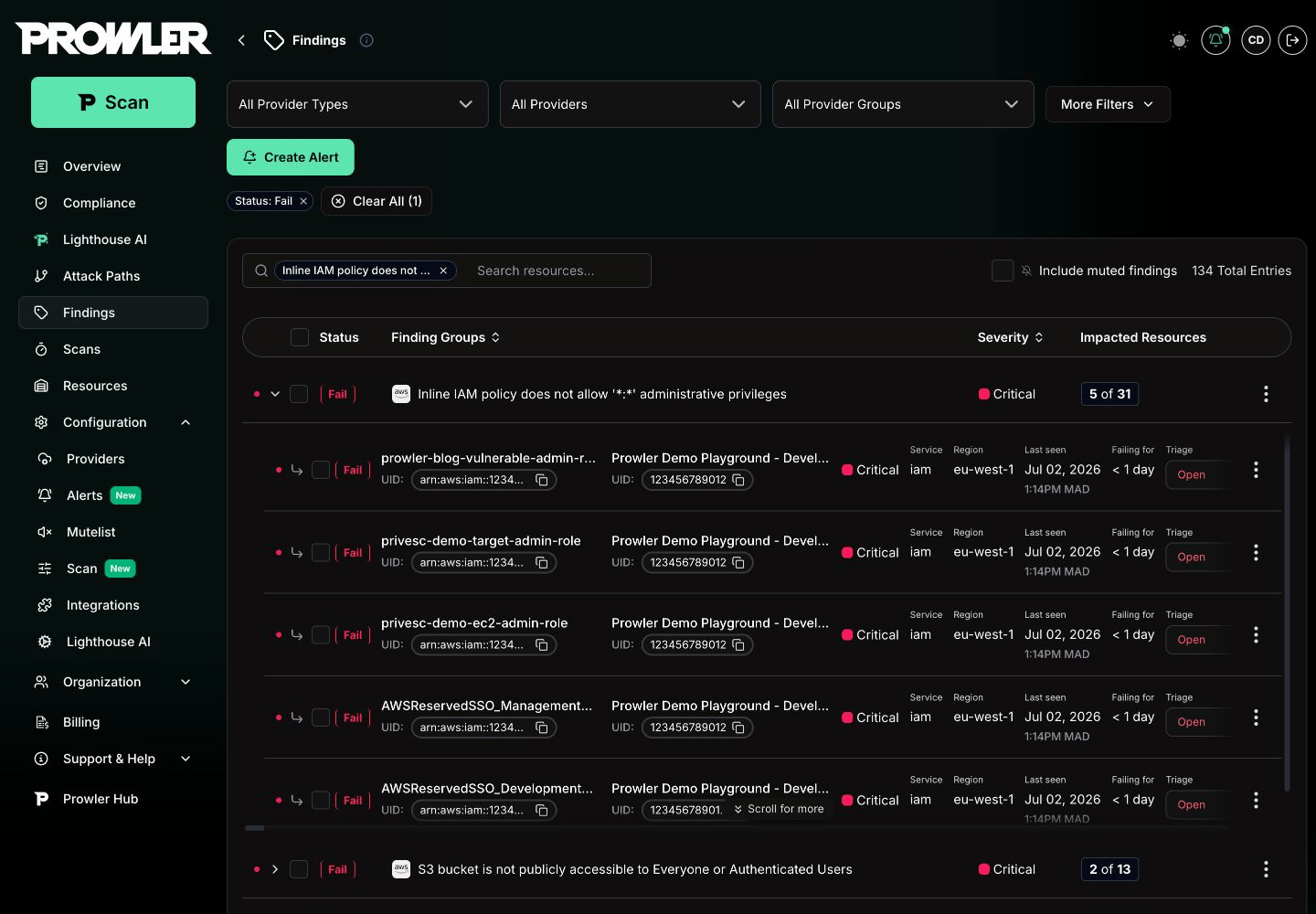
Findings Triage adds a Triage status and team note workflow to individual finding rows. It is available from:- Expanded rows in Finding Groups
- Standalone finding tables
- Finding and resource detail drawers, including related findings tables
Required Permissions
To update triage statuses and notes, the user role must have the Manage Scans permission. For more information, see Role-Based Access Control (RBAC). Users without this permission can still see existing triage context when it is available, but cannot change statuses or save notes.Triage Statuses
The status selector includes manual statuses. Prowler also sets automatic statuses after scans.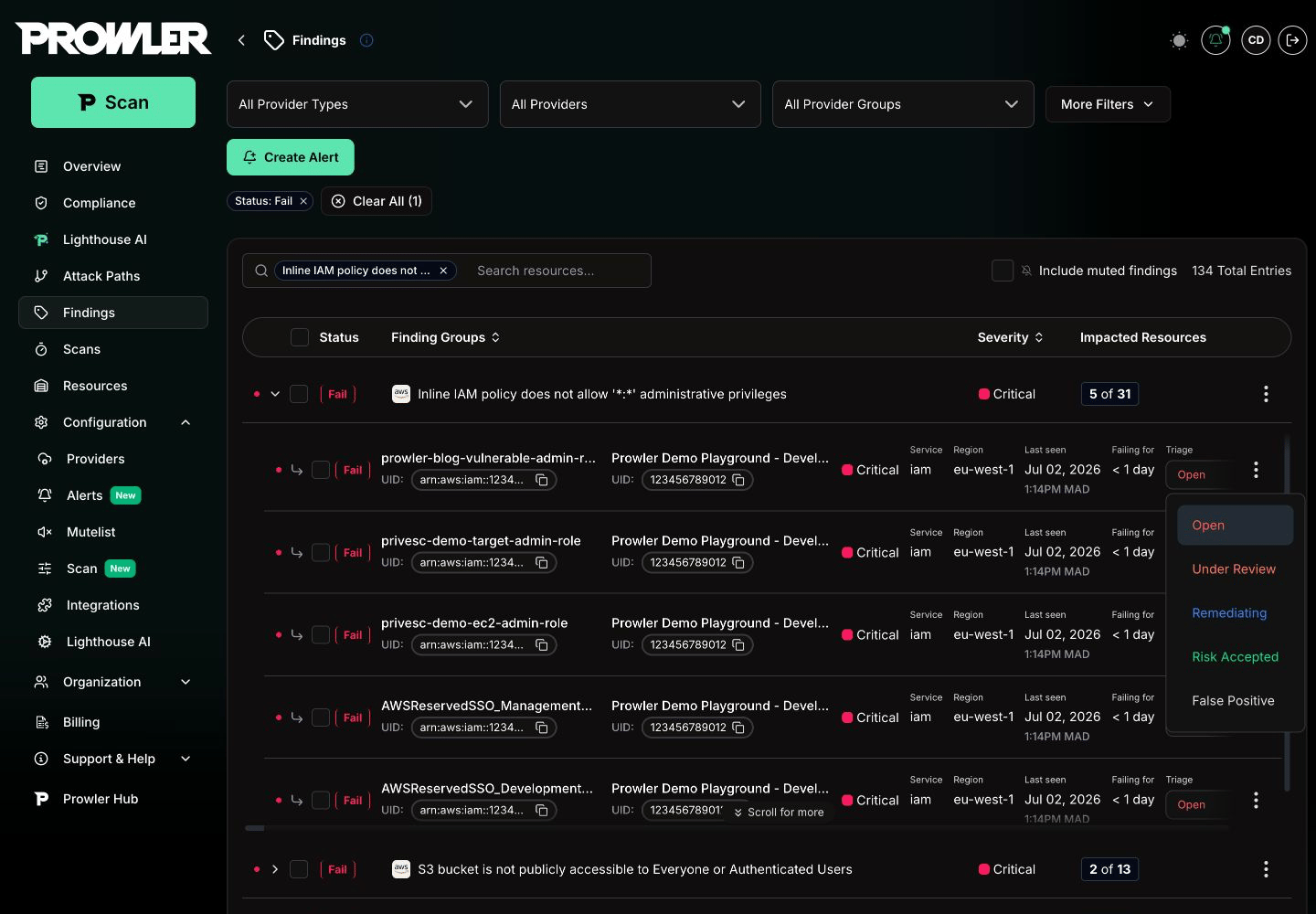
MANUAL findings, where it starts the Manual Pass verification.
These automatic states keep triage tied to the finding UID across scans, even when each scan creates a new finding snapshot.
Change a Triage Status
1
Open Findings
Go to Findings in Prowler Cloud.
2
Select an individual finding
Expand a Finding Group, open a resource findings table, or use a standalone finding row.
3
Open the triage selector
In the Triage column, click the current status.
4
Choose a status
Select Open, Under Review, Remediating, Risk Accepted, or False Positive.
Add or Edit a Triage Note
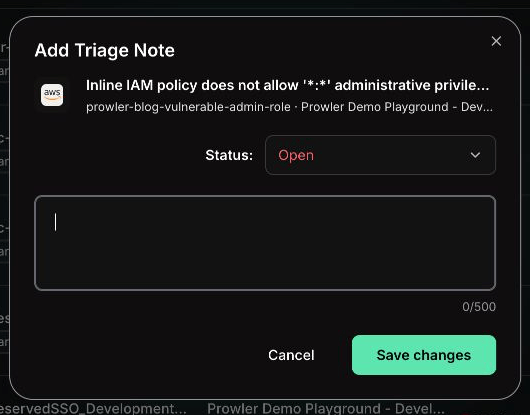
Triage notes are visible only to the team in the current organization. Each note supports up to 500 characters.1
Open the finding actions menu
On an individual finding row, click the actions menu.
2
Open the note modal
Click Add Triage Note. If a note already exists, click Open note.
3
Set status and note text
Optionally change the status, then write the note.
4
Save changes
Click Save changes.
Verify a MANUAL Finding as Pass
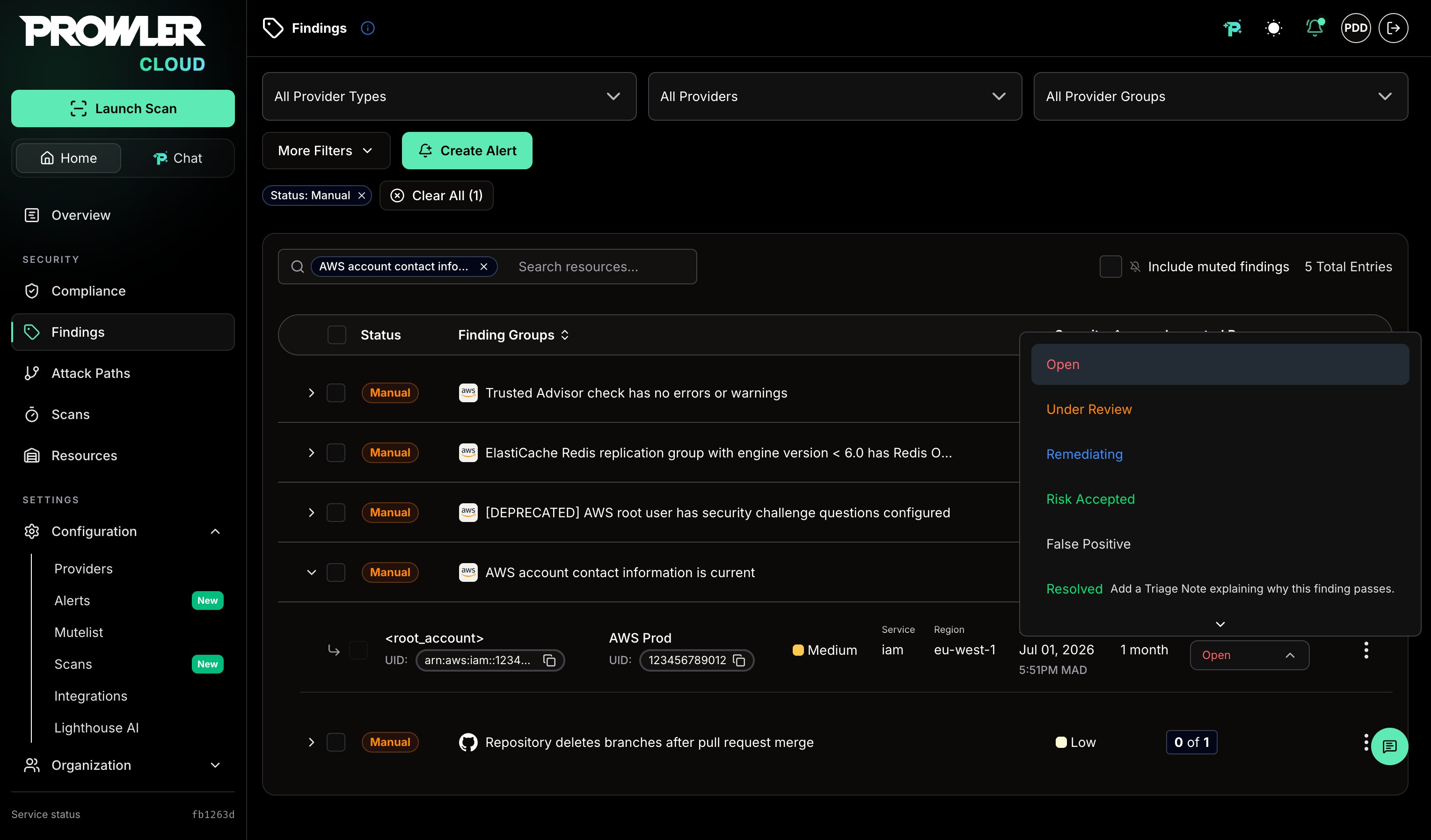
Checks that Prowler cannot judge automatically reportMANUAL findings. When a team verifies such a control outside Prowler, the triage selector on that finding offers Resolved: choosing it records a Manual Pass attestation, and the finding reports an effective PASS while keeping the raw MANUAL scan result.
1
Filter MANUAL findings
Go to Findings and filter by status Manual.
2
Open the triage selector
Expand a Finding Group and click the current status in the Triage column of an individual finding.
3
Choose Resolved
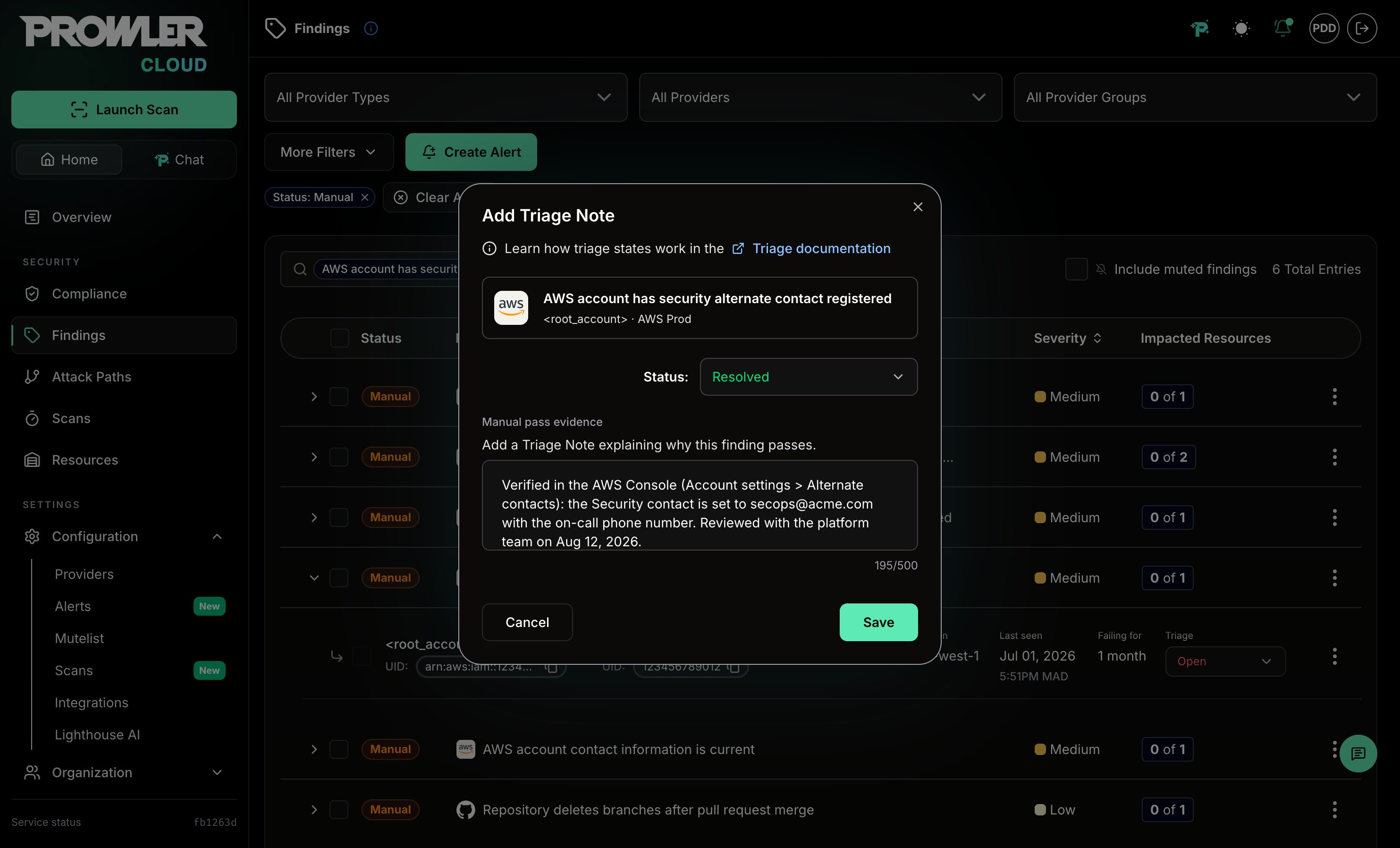
Select Resolved. Prowler opens the triage note modal with a required Manual pass evidence field.
4
Record the evidence
Describe how the control was verified, then click Save. The evidence supports up to 500 characters.
PASS in finding tables, finding groups, compliance reports, and scans. While the attestation is active, the triage status is managed automatically and cannot be changed. View Manual Pass details shows who verified the finding, the evidence, the attestation time, and its expiration.
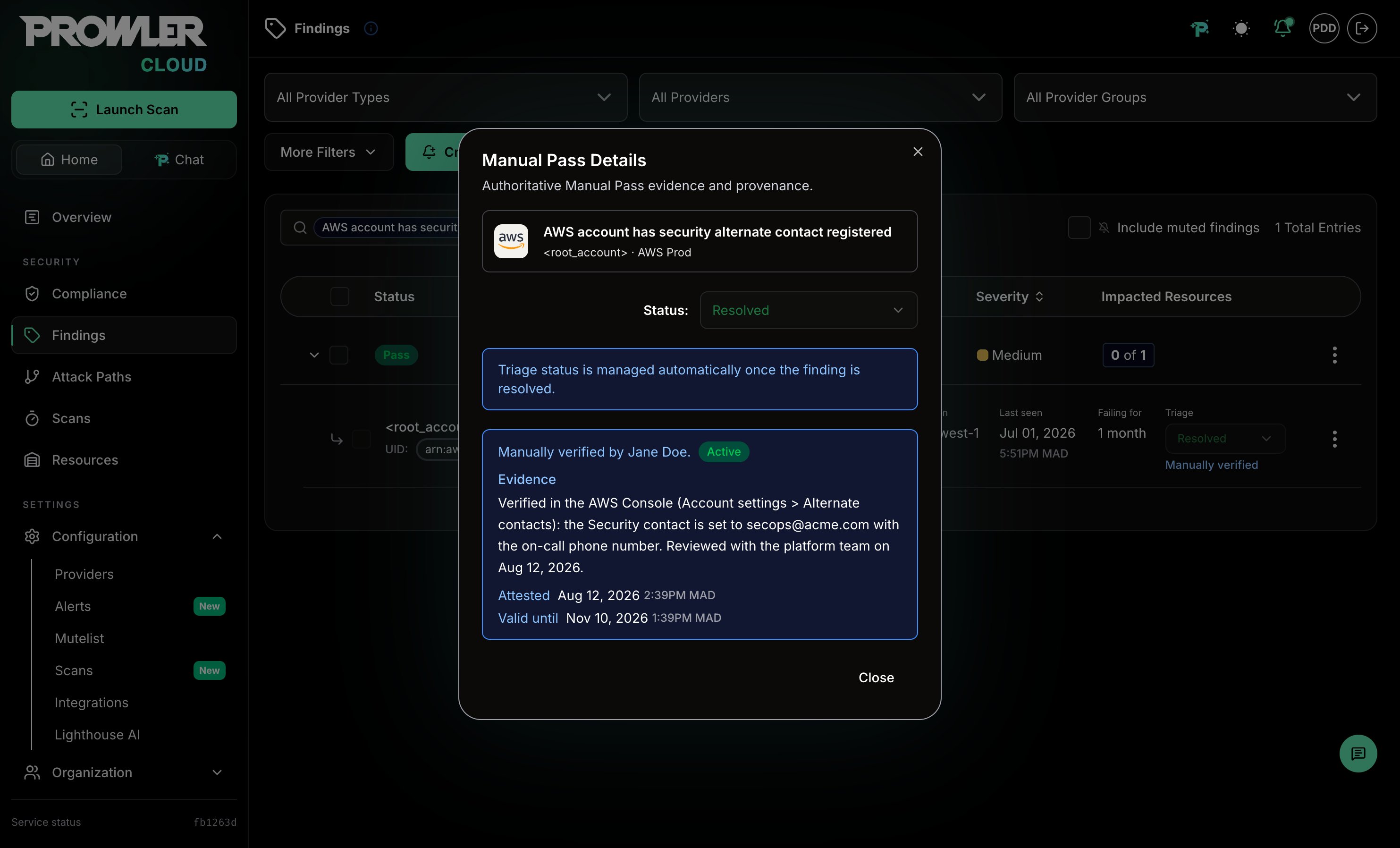
Attestation Expiration
A Manual Pass attestation is valid for 90 days. It also ends early when a later scan reports a real failure for the finding. In both cases the finding returns to its rawMANUAL status for a new review.
Mutelist Behavior
Findings Triage uses Mutelist when a status means the finding should be muted:- Risk Accepted creates a mute rule because the team accepts the finding as a known risk.
- False Positive creates a mute rule because the finding should not count as an active issue.
Troubleshooting
Triage controls do not appear
Make sure the row is an individual finding row. Finding Groups rows do not show triage controls. Expand a group to see affected resources and their triage controls.Changes cannot be saved
Confirm that the user role has Manage Scans permission. Prowler Local Server does not support Findings Triage writes.Resolved or Reopened is missing from the selector
Reopened is always automatic. Resolved is set automatically from scan result changes and appears as a selector option only onMANUAL findings, where it records a Manual Pass. On findings with any other status, this is expected.